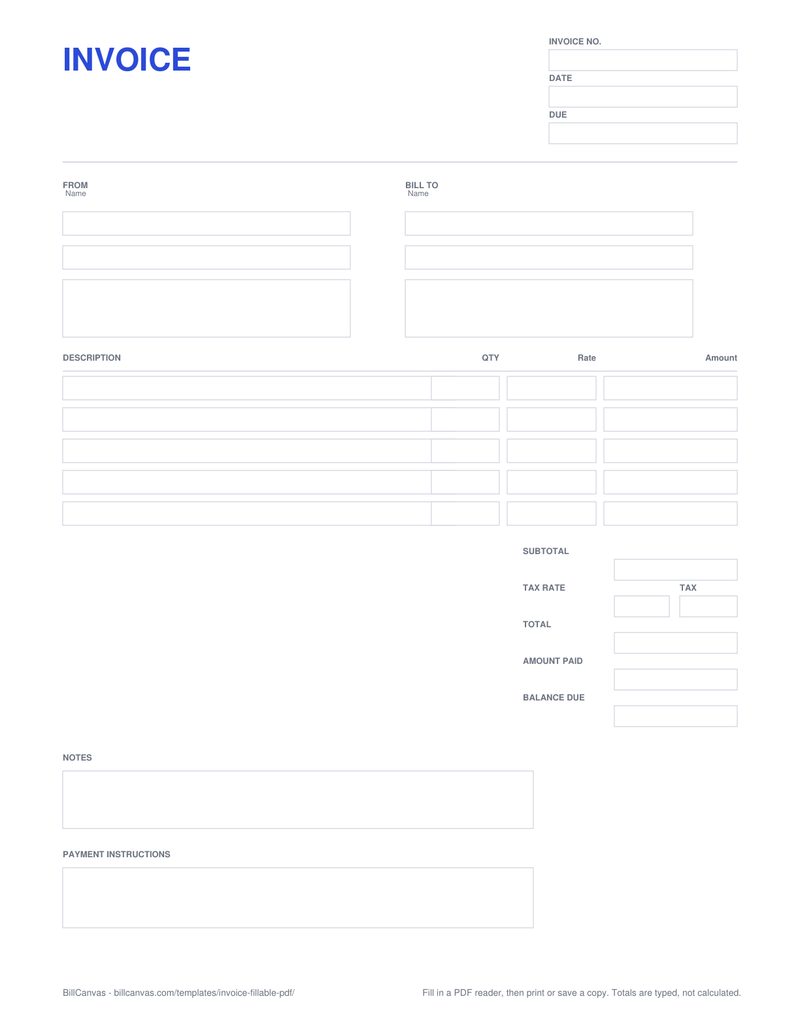
How to fill it in
- Download the PDF and open it in a desktop PDF reader.
- Click each field and type. Use Tab to move through the fields.
- Fill the line items and type the totals. The PDF does not calculate them.
- Save a copy (File → Save As) so the filled values are kept.
- Print it, or send the saved PDF to the client.
Which apps work
Adobe Acrobat Reader, desktop Chrome and Edge, and macOS Preview show the form fields. Some mobile PDF viewers only display the page and hide the fields; if you cannot click a field, try a desktop reader.
Fillable PDF vs Excel vs online
- Fillable PDF: fixed layout, type into the form, no formulas.
- Excel: formulas for amount, tax and balance; better for repeat invoicing.
- Online generator: type once, totals calculate, download a finished PDF.
Privacy
The PDF is a local file. Nothing is uploaded when you fill it in, and BillCanvas does not receive the values. Keep the saved copy with your records.
Limitations
The form has five line rows and the totals are manual. If you need more rows or automatic totals, use the Excel template or the online generator.