How to use it
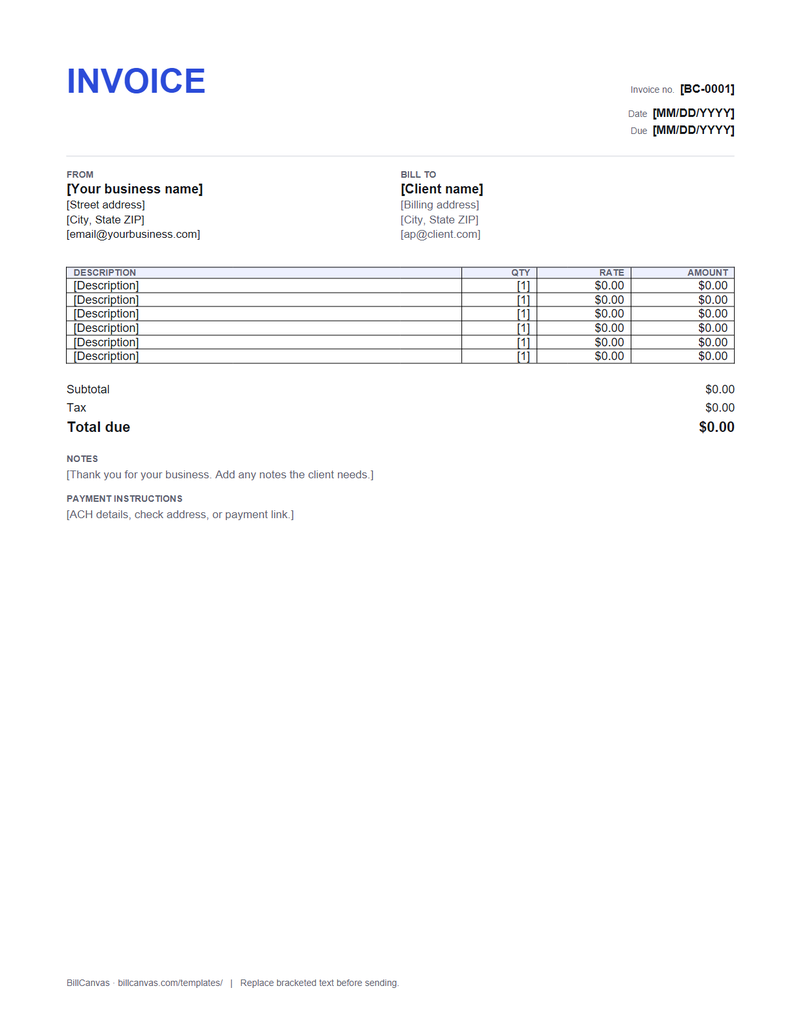
- Download the .docx and open it in Word, LibreOffice or Google Docs.
- Replace the bracketed text. Use your legal business name on the first line so the payment matches.
- Add or remove line rows by copying a row inside the table; keep the table on the first page.
- Calculate the amount for each row, the subtotal, tax and total, and type them in. Word does not run spreadsheet formulas.
- Save as PDF (File → Save As → PDF) before sending, so the layout does not shift on the client’s machine.
Word does not calculate the totals
Word is a word processor, not a spreadsheet. If you want the subtotal, tax and balance to calculate themselves, use the Excel invoice template or the online invoice generator instead.
Word vs PDF vs online
- Word: edit the layout, add a logo, change the wording. Totals are manual.
- PDF: send a fixed, print-ready file that the client cannot accidentally edit.
- Online generator: type once, totals update, download a PDF. No account, no upload.
Keep it to one page
Use short descriptions, keep the line items to six or seven, and leave the notes to one or two lines. If the project needs more rows, let the table run to a second page and repeat the header row (Table Tools → Layout → Repeat Header Rows).