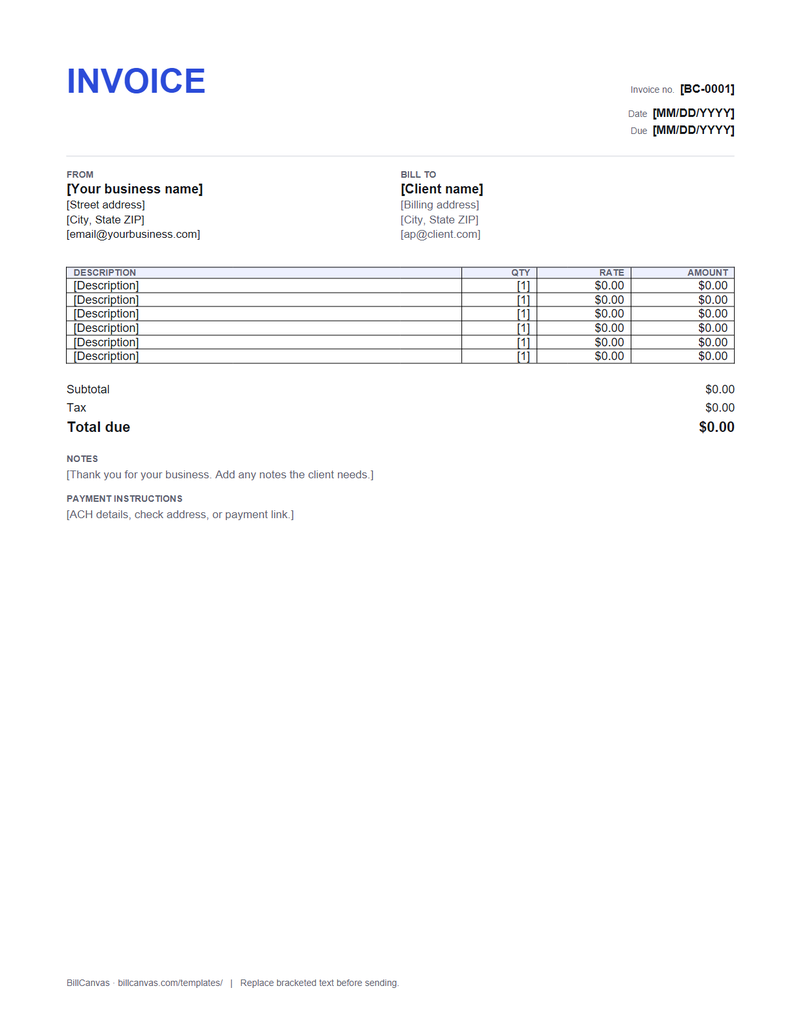
How to import it into Google Docs
- Download the .docx file.
- In Google Drive, choose New → File upload, then upload the DOCX.
- Right-click the uploaded file and choose Open with → Google Docs.
- Replace the bracketed text and line items. Add or remove rows by right-clicking a table row.
- When it is ready, choose File → Download → PDF Document (.pdf) and send that file.
What carries over
Text, tables and basic formatting carry over. Fonts may be substituted by Google’s font library, and table column widths can shift slightly. Check the first page after import and adjust the table if a column wraps.
Google Docs vs Word vs online
- Google Docs: edit from any browser, share for comments, export a PDF.
- Word: better control over exact page layout and print settings.
- Online generator: type once, totals calculate, download a PDF with no account.
Sharing and approval
If you share the document for approval, give the client “Commenter” access rather than “Editor” so the invoice cannot be changed silently. For the final copy, download the PDF and send that — it preserves the layout.
Keep it to one page
Use short descriptions and keep the rows to six or seven. If the table runs to a second page, repeat the header row from the table menu and check the page break in the PDF preview.